

Top
Author
Published
18 Nov 2026Form Number
LP2577PDF size
19 pages, 2.3 MBSubscribed to LP2577.
Thank you for your feedback.
Table of Contents
Abstract
With ESX 9, delivered as part of VMware Cloud Foundation (VCF) 9, image-based lifecycle management is established as the forward-supported model for managing ESX host software. This paper describes image-based lifecycle management with vSphere Lifecycle Manager (vLCM) in Lenovo ThinkSystem environments, image composition principles, and considerations for migrating existing clusters from VMware Update Manager (VUM) baselines to image-based management, including image validation, compliance, and remediation workflows.
By adopting image-based lifecycle management, organizations can improve operational consistency, reduce configuration drift, and establish a repeatable foundation for future ESX 9 releases.
Introduction
Reliable ESX 9 lifecycle operations depend on a consistent and declarative software management model. Historically, ESX upgrades were performed using baseline-driven workflows that allowed hosts within a cluster to diverge in software composition over time. While functional, this approach introduced operational complexity, upgrade variability, and configuration drift.
With ESX 9, image-based lifecycle management is formalized as the authoritative and forward-supported model for ESX host software. This capability is implemented through vSphere Lifecycle Manager (vLCM), which defines a desired ESX software state and enforces that state uniformly across all hosts within a cluster.
For ESX 9, image-based lifecycle management is the only supported model. Baselines cannot be used to manage ESX 9 hosts, and new clusters and hosts are image-managed by default.
This paper applies to ESX 9 running on Lenovo ThinkSystem servers and managed with vSphere Lifecycle Manager. In this paper, “ESX 9” refers to ESX 9.0 and later minor releases. VMware Cloud Foundation (VCF) 9 is the complete solution that includes vSphere, vSAN, NSX and other components; this paper addresses only the ESX software lifecycle. vCenter Server upgrade procedures are referenced only where prerequisite relationships must be clarified.
Upgrade Model Overview
vSphere Lifecycle Manager (vLCM) introduces an image-based lifecycle management framework that uses a desired-state model to define and maintain software consistency across ESX clusters.
Unlike traditional baseline-driven lifecycle management [5], which focuses on individual patches and updates, image-based lifecycle management defines the complete software stack that should exist on each host. The desired image may include an ESX Base Image, a Lenovo Vendor Add-On, firmware packages, and additional components. vLCM evaluates cluster compliance against this image, on a schedule or on demand, and identifies any deviations from the intended state. Administrators then remediate non-compliant hosts to restore compliance.
By managing the complete host software stack as a single image, organizations can simplify lifecycle operations, reduce configuration drift, and improve consistency across large-scale environments. The image-based approach also provides a standardized foundation for ongoing upgrades, patching, and hardware enablement activities.
vSphere Lifecycle Manager Architecture
vSphere Lifecycle Manager uses a desired-state architecture to maintain software consistency across all hosts within a cluster. Rather than applying individual updates independently, vLCM defines a target software image and evaluates cluster compliance against that image.
This approach simplifies lifecycle operations by ensuring that all hosts are aligned with a centrally managed software definition.
The following subsections detail each of these:
Image-Based Management in ESX 9
For ESX 9, vSphere Lifecycle Manager (vLCM) images are the only supported model for managing host lifecycle. VMware by Broadcom has removed major functionality from vSphere Lifecycle Manager baselines (formerly VMware Update Manager, VUM). Baselines cannot be used to patch or upgrade ESX 9 hosts, new baseline-managed clusters and standalone hosts cannot be created, and new clusters and hosts are managed by vLCM images by default. Rollup bulletins are not released for ESX 9.
All ESX 9 lifecycle operations are therefore performed through a desired-state image, which defines the ESX base image, the Lenovo Vendor Add-On, optional components, and firmware and drivers delivered through Lenovo XClarity Integrator (LXCI) [10]. Image-based management also provides a single compliance model and consistent remediation behavior across the cluster, which baselines did not offer.
Organizations that still manage clusters with baselines should transition them to image-based management. Conversion is performed at the cluster level and cannot be reversed after completion, so the desired image and hardware compatibility should be validated before conversion begins. See [2] for the Broadcom conversion procedure, and [4] for details on baseline behavior in ESX 9.
Image-Based Lifecycle Architecture
In an image-managed cluster, vLCM maintains a desired software image that serves as the authoritative configuration for all hosts within the cluster.
A typical image consists of:
- VMware ESX Base Image
- Lenovo Vendor Add-On [9]
- Optional Components
- Firmware Packages (when managed through Lenovo XClarity Integrator) [10]
The following conceptual workflow illustrates the architecture:
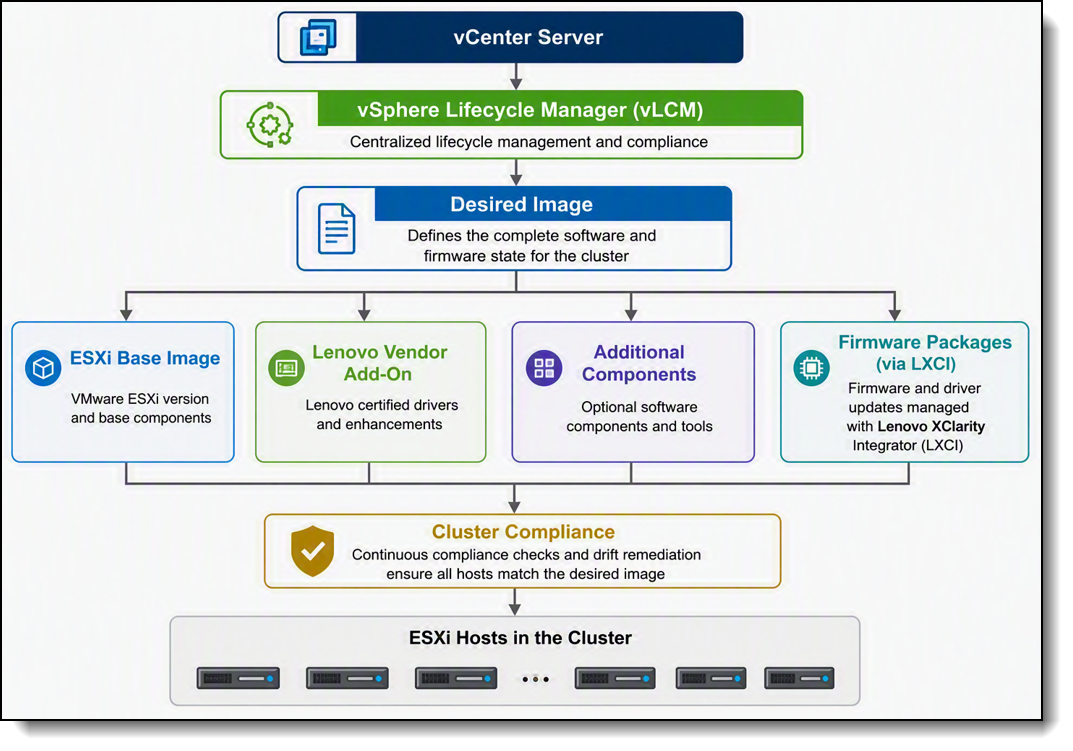
Figure 1. vSphere Lifecycle Manager Desired-State Architecture
Hosts are periodically evaluated against the desired image, and compliance status is reported through vCenter Server. When differences are detected, vLCM can remediate hosts and restore compliance with the defined image.
ESX Image Design Principles
vSphere Lifecycle Manager (vLCM) uses a desired-state image model to define and maintain host software consistency across a cluster. Each image may contain a VMware ESX Base Image, a Lenovo Vendor Add-On, firmware updates, and additional components.
Cluster compliance is evaluated against the image, which serves as the authoritative software definition for lifecycle operations.
The following subsections detail each of these:
Image Composition
A vLCM image may consist of the following elements:
- VMware ESX Base Image
- Lenovo Vendor Add-On[9]
- Firmware and Drivers Add-On (when managed through Lenovo XClarity Integrator) [10]
- Optional Additional Components This modular model allows administrators to create standardized cluster definitions while maintaining flexibility for platform-specific requirements.
The following figure shows an example of a desired image. .
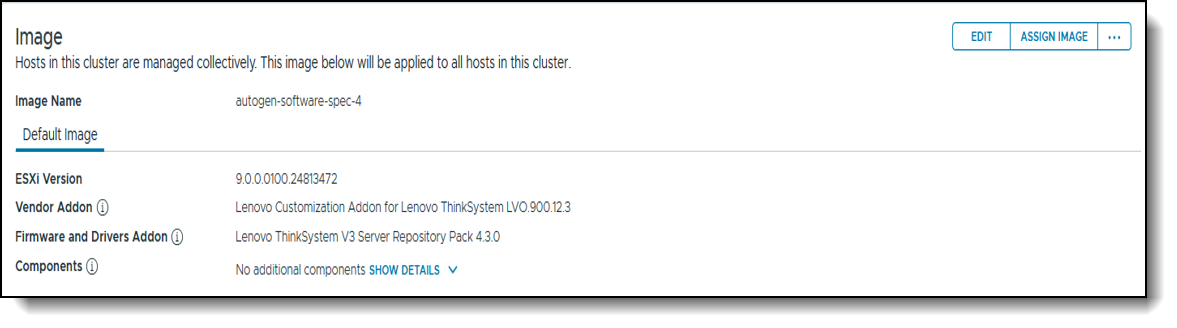
Figure 2. Example desired image consisting of an ESX base image, a Lenovo Vendor Add-On, and a firmware and drivers add-on (example from a lab environment).
VMware ESX Base Image with Lenovo Vendor Add-On
This approach uses the standard VMware ESX image together with a Lenovo Vendor Add-On.
Advantages include:
- Independent control of ESX and Lenovo content
- Faster adoption of new VMware releases
- Flexible lifecycle management
- Alignment with VMware recommended image construction practices
This model is generally recommended for environments seeking maximum lifecycle flexibility and component-level control.
Lenovo Custom ESX Offline Bundle
Lenovo also publishes pre-integrated ESX images that include validated Lenovo drivers and hardware-specific components. [9]
Advantages include:
- Simplified deployment process
- Reduced image assembly effort
- Lenovo-validated component combinations
- Faster implementation for standard environments
This approach is particularly useful for greenfield deployments and environments preferring a pre-tested image configuration.
Selecting an Image Strategy
Selection of an image strategy should be based on operational requirements and lifecycle management objectives.
Both approaches are fully supported within vSphere Lifecycle Manager and can be used to maintain cluster compliance through image-based lifecycle management.
Migration from Baseline-Based Lifecycle Management
Organizations that manage clusters through baselines should transition to image-based lifecycle management. The migration converts a cluster from baseline management to an image-managed model in which lifecycle control is defined by a desired-state image.
The following subsections detail each of these:
Migration Prerequisites
Before initiating migration, organizations should verify that the cluster is eligible for image-based lifecycle management and that all hosts support the desired software configuration.
Key prerequisites include:
- A supported vCenter Server and ESX version [1]
- Hardware compatibility of every host with the desired image, verified against the Broadcom Compatibility Guide (BCG) [7]
- Supported Lenovo Vendor Add-On availability
- Validation of required software components and drivers
Proper preparation helps reduce migration risk and simplifies subsequent lifecycle management operations.
Cluster Assessment and Validation
A cluster assessment should be performed prior to migration to identify any conditions that may affect image management.
Administrators should evaluate:
- Current cluster compliance status
- Host software consistency
- Hardware compatibility requirements
- Vendor Add-On supportability
- Existing operational constraints
Addressing potential issues before migration improves the likelihood of a successful transition to image-based management.
Migration Approach
The migration process creates a desired image that represents the intended software state of the cluster. In the vSphere Client, a baseline-managed cluster shows its attached baselines and compliance status on the Updates tab, together with the Manage with a single image option (Figure 3). Selecting it starts the conversion.
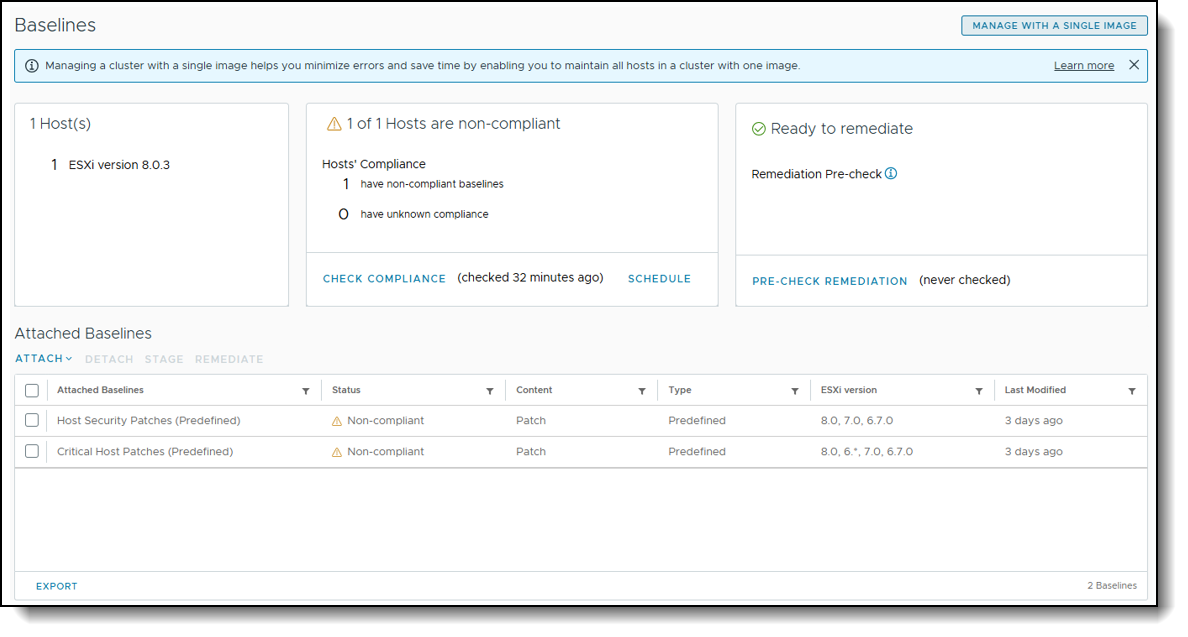
Figure 3. Example of a baseline-managed cluster. The Manage with a single image button starts the conversion to image-based management (example from a lab environment).
The vSphere Client then detects the image running on the cluster's hosts (Figure 4) and offers three ways to establish the desired image:
Proceed with this image: use the image detected on the hosts as the starting point and customize it in the next step.
Import image: use an image that was prepared and imported beforehand, for example a Lenovo custom ESX offline bundle.
Set up image manually: build the image from an ESX base image, a Lenovo Vendor Add-On, and optional components.
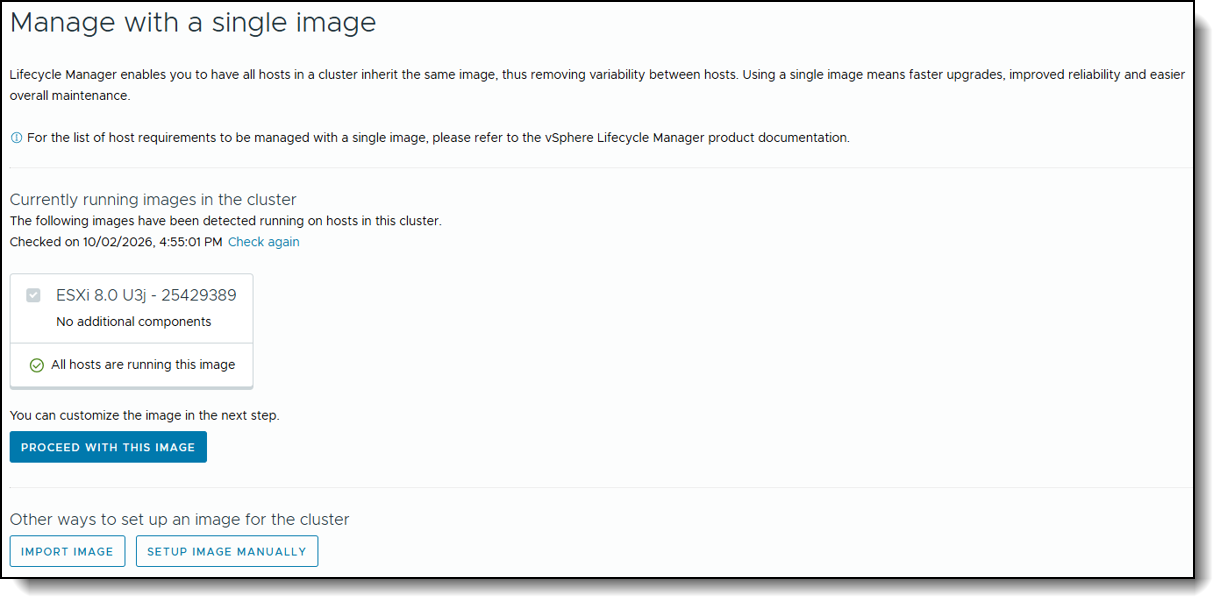
Figure 4. Example of the "Manage with a single image" screen shown during conversion (example from a lab environment).
Once the desired image is established, vSphere Lifecycle Manager uses it as the authoritative lifecycle management policy for all hosts within the cluster. Following migration, lifecycle operations are performed through image compliance and remediation workflows rather than baseline attachment and scanning procedures. This provides a more streamlined and consistent lifecycle management experience across the cluster.
Post-Migration Considerations
After a cluster is converted to image-based lifecycle management, all future lifecycle operations are managed through the desired image model. Organizations should consider the following operational impacts:
- Lifecycle compliance is evaluated against the defined image rather than individual baselines.
- Software updates are delivered through image revisions.
- Cluster consistency is maintained through desired-state enforcement.
- Lifecycle planning should focus on image maintenance and governance.
Migration from baseline-based lifecycle management to image-based lifecycle management should therefore be viewed as both a technical transition and an operational modernization initiative.
A checklist covering the migration steps described in this paper is provided in Appendix A.
Example Upgrade Workflow Overview
The following example illustrates the six stages of a representative image-based lifecycle workflow using vSphere Lifecycle Manager for ESX 9. It describes the sequence of operations rather than detailed procedures. For step-by-step instructions, see the Broadcom documentation [6].
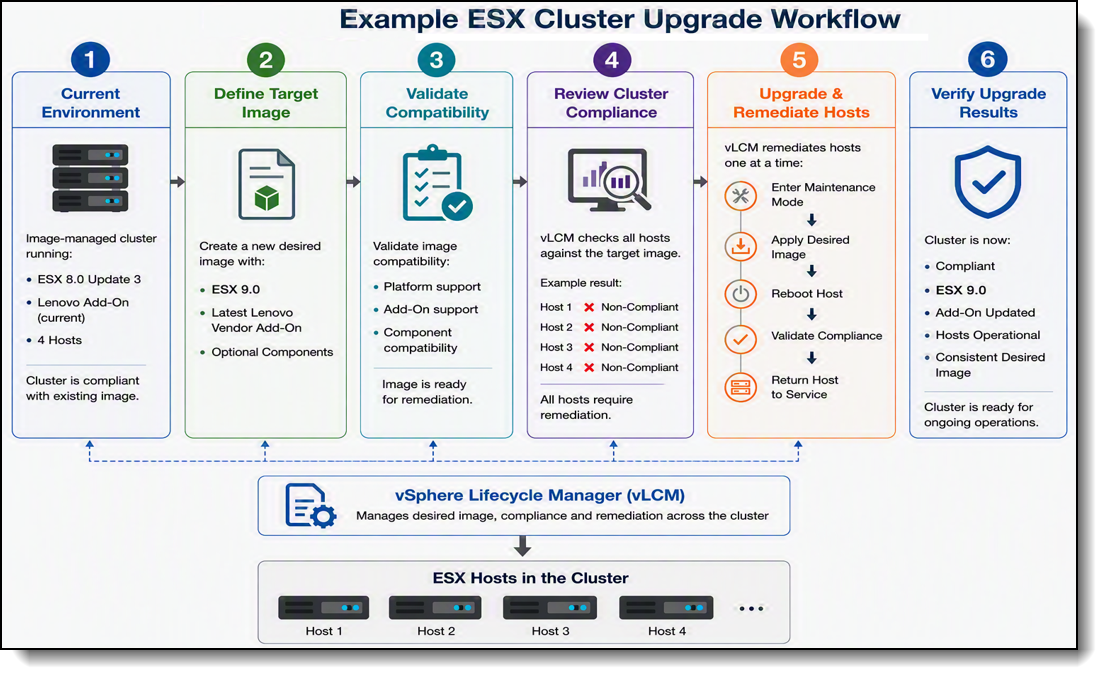
Figure 5. Example ESX Cluster Upgrade Workflow.
The following subsections detail each of these:
Current Environment
In this example, the cluster is image-managed and consists of two Lenovo ThinkSystem servers (Host 1 and Host 2) running ESXi 8.0 Update 3 with a Lenovo Vendor Add-On. Both hosts are compliant with the existing desired image, and the cluster is operating normally.
The existing image represents the current software definition used across all hosts in the cluster. It is the starting point for the upgrade workflow shown in Figure 5, in which the desired image is updated to ESX 9.
Define the Target Image
To prepare for an upgrade, administrators create or modify the desired cluster image within vSphere Lifecycle Manager.
The target image may include:
- A newer VMware ESX Base Image
- An updated Lenovo Vendor Add-On
- Optional software components required by the environment
The desired image serves as the authoritative software definition for the cluster.
Upgrade Path Validation
Before initiating a baseline-to-image conversion or performing an ESXi upgrade, administrators should verify the supported upgrade path using the VMware Upgrade Path Interoperability Matrix [8].
Verification should include:
- Current vCenter Server version
- Target vCenter Server version
- Current ESXi version
- Target ESXi version
- Direct upgrade path support
- Required intermediate upgrade steps
- vCenter and ESXi interoperability
- Lenovo Vendor Add-On availability for the target release
Administrators should ensure that the planned upgrade path is supported before creating or modifying a cluster image.
Validate Image Compatibility
Before performing remediation, the target image should be validated to verify compatibility across the cluster.
Validation activities typically include:
- Verifying platform support
- Reviewing software component compatibility
- Confirming Vendor Add-On support
- Identifying potential compliance issues
Early validation helps minimize operational risk during upgrade activities.
Review Cluster Compliance
After the image has been defined and validated, vSphere Lifecycle Manager evaluates all hosts against the desired image. An example of the compliance check result is shown in Figure 6 (Section 7.4).
The compliance assessment identifies:
- Compliant hosts
- Non-compliant hosts
- Missing components
- Version inconsistencies
Administrators should review identified deviations before proceeding with remediation.
Remediate the Cluster
Once compliance assessment is complete, remediation can be initiated.
During remediation, vSphere Lifecycle Manager applies the desired image to each host and performs any required maintenance operations.
Typical remediation activities include:
- Entering maintenance mode
- Applying image updates
- Rebooting affected hosts when required
- Revalidating image compliance
- Returning hosts to service
The process continues until all hosts match the desired software definition.
Verify Upgrade Results
Following remediation, administrators should confirm that all lifecycle objectives have been achieved.
Verification should include:
- Cluster compliance status
- Host operational status
- ESX version consistency
- Vendor Add-On version consistency
- Workload availability
A successful remediation results in a fully compliant cluster operating under a unified desired-state image.
Lifecycle Management Recommendations
Organizations adopting image-based lifecycle management should develop operational practices that maintain software consistency while minimizing upgrade complexity and lifecycle risk.
The following subsections detail each of these:
- Select a Consistent Image Strategy
- Maintain Image Consistency Across Cluster Hosts
- Validate Image Content Before Deployment
- Review Compliance Regularly
- Plan Lifecycle Activities Around the Desired Image
Select a Consistent Image Strategy
Organizations should standardize on a preferred image construction approach whenever possible.
For environments requiring greater lifecycle flexibility, VMware ESX Base Images combined with Lenovo Vendor Add-Ons provide independent control of platform software components. For environments prioritizing deployment simplicity, Lenovo custom images may offer a streamlined alternative.
A consistent image strategy simplifies ongoing lifecycle operations and compliance management.
Maintain Image Consistency Across Cluster Hosts
Image-managed clusters operate most effectively when all hosts are aligned with a common desired image definition.
Avoid introducing host-specific software variations whenever possible. Maintaining a uniform software stack reduces operational complexity and simplifies compliance remediation activities.
Validate Image Content Before Deployment
Before assigning a new image to a production cluster, administrators should verify that all image components have been appropriately validated.
Validation should include:
- ESX version support
- Lenovo Vendor Add-On compatibility
- Optional component compatibility
- Application support requirements
Pre-deployment validation reduces unexpected remediation issues and improves upgrade success rates.
Review Compliance Regularly
Compliance status should be reviewed regularly to identify deviations from the desired image. Figure 6 shows an example Image Compliance view in the vSphere Client. It displays the desired image (ESX version, Lenovo Vendor Add-On, and firmware and drivers add-on), the compliance status of each host, and the Check Compliance, Run Pre-check, Stage and Remediate actions.
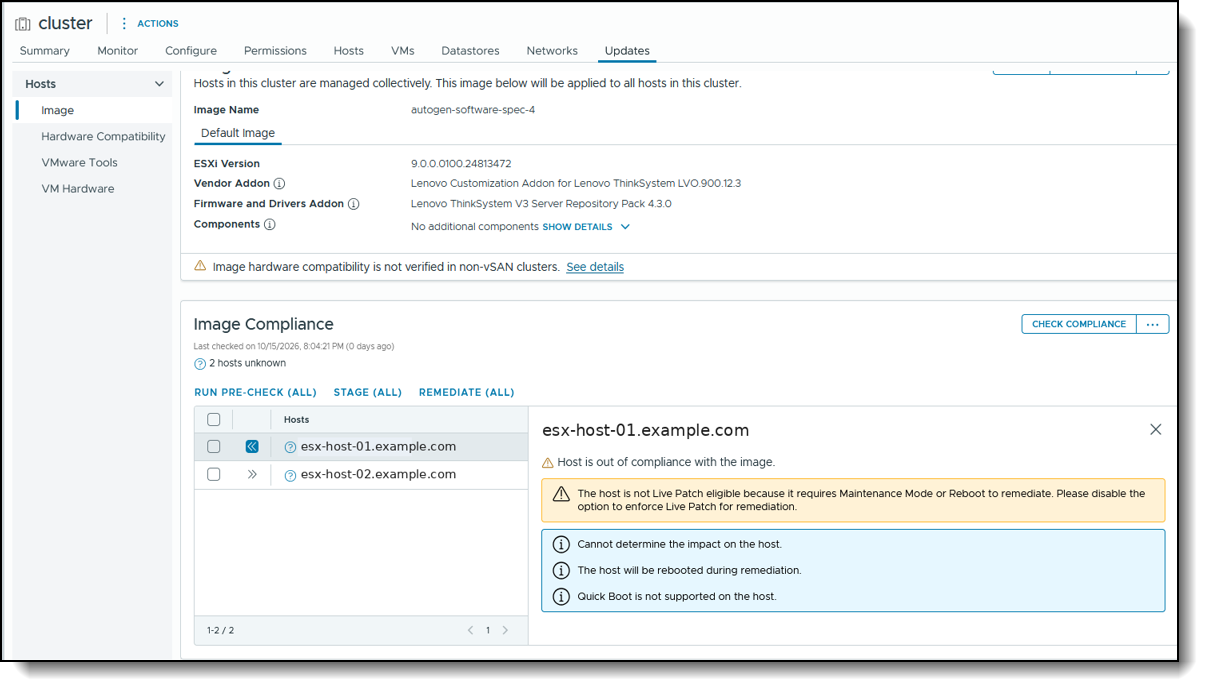
Figure 6. Example Image Compliance view showing the desired image and host compliance status (example from a lab environment).
Routine compliance monitoring helps ensure that clusters remain aligned with approved software definitions and allows remediation activities to be planned proactively.
Plan Lifecycle Activities Around the Desired Image
In image-managed environments, lifecycle operations are performed through image updates rather than individual patch selection.
Organizations should establish maintenance procedures that focus on:
- Image revision planning
- Compliance validation
- Cluster remediation
- Post-upgrade verification
This operational model helps maintain consistency throughout the lifecycle of the cluster.
Conclusion
vSphere Lifecycle Manager (vLCM) provides a modern image-based lifecycle management framework for maintaining software consistency across ESX 9 clusters. By adopting a desired-state image model, administrators can manage the entire host software stack through a unified image rather than individual patches and updates.
Image-based lifecycle management simplifies lifecycle operations by establishing a consistent software definition for all hosts within a cluster. The combination of VMware ESX Base Images, Lenovo Vendor Add-Ons, and optional components enables organizations to build standardized and repeatable software configurations while maintaining operational flexibility.
For environments currently using baseline-based lifecycle management, migration to image-managed clusters is an important step toward aligning with the VMware by Broadcom lifecycle management direction for ESX 9. A well-planned migration strategy can help organizations reduce configuration drift, improve compliance visibility, and streamline future upgrade activities. All ESX 9 lifecycle operations are performed with vLCM images, so image-based management should be adopted as the standard operating model.
Successful lifecycle management extends beyond software updates. Organizations should establish a consistent image strategy, validate image content before deployment, and maintain regular compliance reviews throughout the lifecycle of the environment. These practices help reduce operational complexity and support predictable lifecycle outcomes.
By combining image-based lifecycle management with standardized operational procedures, organizations can improve lifecycle consistency, simplify upgrade operations, and maintain a stable foundation for future infrastructure growth.
Appendix A. Migration Checklist
Use this checklist to track the migration of a baseline-managed cluster to image-based lifecycle management. Section references indicate where each item is described in this paper.
Phase 1:
Phase 2
Phase 3:
Phase 4:
References
For more information, see these resources:
VMware by Broadcom References:
- [1] Broadcom, Overview of the vSphere Upgrade Process (vSphere 9.1). Available:
https://techdocs.broadcom.com/us/en/vmware-cis/vsphere/vsphere/9-1/vcenter-upgrade/about-vsphere-upgrade/overview-of-the-upgrade-process.html - [2] Broadcom, Convert a Cluster or Host That Uses Baselines into One That Uses vSphere Lifecycle Manager Images. Available:
https://techdocs.broadcom.com/us/en/vmware-cis/vsphere/vsphere/9-1/managing-host-and-cluster-lifecycle/using-images-to-install-and-update-esxi-hosts-and-clusters/switching-from-baselines-to-images.html - [3] Broadcom Knowledge Base Article 322186, Managing ESX host lifecycle operations with vSphere Lifecycle Manager Images (vLCM) (vCenter Server 8.0). Available:
https://knowledge.broadcom.com/external/article/322186 - [4] Broadcom Knowledge Base Article 379388, Managing ESX host lifecycle operations with vSphere Lifecycle Manager Images (vLCM) (vCenter Server 9.0). Available:
https://knowledge.broadcom.com/external/article/379388 - [5] Broadcom, vSphere Lifecycle Manager Baselines and Images. Available:
https://techdocs.broadcom.com/us/en/vmware-cis/vsphere/vsphere/8-0/managing-host-and-cluster-lifecycle/about-vsphere-lifecycle-manager-new/vlcm-baselines-and-images.html - [6] Broadcom, Using Images to Install and Update ESXi Hosts and Clusters. Available:
https://techdocs.broadcom.com/us/en/vmware-cis/vsphere/vsphere/9-1/managing-host-and-cluster-lifecycle/using-images-to-install-and-update-esxi-hosts-and-clusters.html - [7] Broadcom, Broadcom Compatibility Guide (BCG). Available:
https://compatibilityguide.broadcom.com/ - [8] Broadcom, VMware ESX upgrade path. Available:
https://interopmatrix.broadcom.com/Upgrade?productId=1&isHidePatch=false&isHideLegacyReleases=true
Lenovo References:
- [9] Lenovo, Lenovo Custom Images and Offline Bundles. Available:
https://vmware.lenovo.com/ - [10] Lenovo, Importing ESX and Lenovo Add-ons into vSphere Lifecycle Manager. Available:
https://pubs.lenovo.com/lxci-vcenter/vlcm_import_esxi_vendor - [11] Lenovo, Lenovo VMware Landing page. Available:
https://datacentersupport.lenovo.com/us/en/solutions/server-os-vmware
Author
David Hsia is an OS Engineer in the Lenovo Infrastructure Solutions Group, based in Taipei, Taiwan. As a specialist in Linux and VMware technical support, he is interested in operating system and focuses on VMware vSphere and ESXi.
Trademarks
Lenovo and the Lenovo logo are trademarks or registered trademarks of Lenovo in the United States, other countries, or both. A current list of Lenovo trademarks is available on the Web at https://www.lenovo.com/us/en/legal/copytrade/.
The following terms are trademarks of Lenovo in the United States, other countries, or both:
Lenovo®
ThinkSystem®
XClarity®
Other company, product, or service names may be trademarks or service marks of others.
Configure and Buy
Please select a locale
Full Change History
Course Detail
Employees Only Content
The content in this document with a is only visible to employees who are logged in. Logon using your Lenovo ITcode and password via Lenovo single-signon (SSO).
The author of the document has determined that this content is classified as Lenovo Internal and should not be normally be made available to people who are not employees or contractors. This includes partners, customers, and competitors. The reasons may vary and you should reach out to the authors of the document for clarification, if needed. Be cautious about sharing this content with others as it may contain sensitive information.
Any visitor to the Lenovo Press web site who is not logged on will not be able to see this employee-only content. This content is excluded from search engine indexes and will not appear in any search results.
For all users, including logged-in employees, this employee-only content does not appear in the PDF version of this document.
This functionality is cookie based. The web site will normally remember your login state between browser sessions, however, if you clear cookies at the end of a session or work in an Incognito/Private browser window, then you will need to log in each time.
If you have any questions about this feature of the Lenovo Press web, please email David Watts at dwatts@lenovo.com.


